Frequently Asked Questions
Your all-in-one travel workspace for flights, stays, activities, documents, collaboration, offline access, and expenses — powered by Hoiii, your AI travel buddy.
Last updated: Oct 5, 2025
Getting started
What is Trip Plan Go?
Trip Plan Go is your smart travel organizer. It centralizes flights, hotels, activities, tickets, documents, expenses, and group coordination into a single, clean timeline. Hoiii helps you generate itineraries and import booking details from emails.
How do I create my first trip?
- Tap Create Trip and enter dates, destinations, and travelers.
- Forward booking emails or add items manually.
- Use Hoiii to generate or refine your day-by-day plan.
- Invite companions to collaborate in real time.
Does Trip Plan Go work offline?
Yes. After initial sign-in and sync, you can view your itinerary, tickets, documents, discussions, and expenses offline once they’ve been loaded at least once. See Offline access for preparation tips.
Privacy & sharing Private by default
Who can see my trip data?
By default, only you can see your bookings, expenses, and documents. You control sharing at a category level for each trip.
How do I change privacy settings for a trip?
- Open the trip overview.
- Tap the 🛡️ Privacy icon (next to the back arrow).
- Choose what to share: Bookings (transport, accommodations), Expenses, Documents.
- Select Private, All Trip Members, or Custom.
Changes apply instantly to that trip’s data.
Email import & tickets
How do I import bookings from email?
Recommended: forward each confirmation email to your trip’s unique address (shown inside the trip). Our AI extracts dates, times, locations, and key details for FlightsTrainsBusesCruiseFerryRental carsHotelsActivities For all-inclusive trips, booking confirmation email normally contains both flight and hotel information. When importing an all-inclusive booking, select flight type, Our AI will look for the key words of all-inclusive package to import accordingly.
- Forward original confirmation emails (not screenshots).
- One booking per email for best accuracy.
- After import, tap the pencil icon to review & edit if needed, then mark as Verified.
- Once the booking is in the app, you can upload one or multiple tickets (PDF or screenshot png files or QR code image) to the specific booking ticket, such as transportation boarding pass QR code, museum entry ticket, concert/show ticket. Make sure you tap to view the uploaded file once so it will be cached for offline viewing support.
Can I upload tickets and PDFs manually?
Yes. Use Upload Document for PDFs or clear screenshots (PNG/JPG). These files are viewable offline once opened at least once.
My flight/hotel didn’t appear correctly — what should I do?
- Open the item and check details; edit with the pencil icon if small fixes are needed.
- If it was miscategorized, change its type to the correct category (e.g., Flight).
- If the email was a forward of a forward, resend the original confirmation or re-forward with the original content intact. Our system will not process duplicate emails that contain the same booking reference and passenger name(s). If you need to re-forward the booking email, make sure to delete the old/existing one in the app first so they system won't detect a duplicate is already in existent.
- As a fallback, upload the PDF ticket and choose the correct booking type.
Heads-up: AI import is powerful but not perfect. Always review imported items before marking as Verified.
What if my airline changes my schedule?
First, delete the existing old booking data in the app in Document Vault or transportation screen (tap the ✈️ icon). Select the correct transportation type then forward the updated email again. Our AI will process it and add it to your trip. Review and verify after import.
Troubleshooting: My Forwarded Booking Is Missing or Incomplete
If you forwarded a booking but can't see it in the app, or the imported ticket is missing details and only shows a reference number, check the following:
- Verify the Attachment: Ensure the original booking confirmation PDF file is actually attached to the forwarded email.
- iOS Users: If you are forwarding from an iOS device and the data is missing, your device's mail app may strip the attachment. Forward the original PDF file directly instead of the booking email.
- Avoid Duplicates: If you need to try forwarding again, delete the existing incomplete booking from the app first. Our AI will automatically skip processing any duplicate booking (same reference number and passenger names).
Hotels & itinerary
How do hotel cards display on the itinerary?
By default, accommodations show on the check-in day only. You can change this to “show daily during stay” from any hotel card’s display options in Itinerary screen.
How are flights and multi-segment trips displayed?
Each segment appears on its departure date as a separate card. Round-trips display outbound and return legs individually on the departure date respectively.
Can Hoiii build my daily plan?
Yes. Use Hoiii to generate day-by-day suggestions, then customize. You can also add or edit activities manually at any time. Note that Hoiii can build multi-day activities, but if you wish to let Hoiii directly add the activities into your itinerary, Hoiii can only do it one day at a time at the moment.
How do “Who’s staying here” and “Who’s going” work?
For hotels, assign guests per room with Who’s staying here. For activities, manage participation with Who’s going so everyone sees what they’re part of. You can quickly tap the person icon on the hotel or activity card to add or remove yourself from it.
Offline access
What works offline?
- Itinerary (transport, hotels, activities)
- Tickets & PDFs (after you’ve opened them once)
- Discussion threads & messages (after you’ve opened Messages once)
- Photos in discussions (once loaded), poll results, and expenses
What needs internet?
- Initial login and authentication
- Uploading new files and photos/videos
- New AI suggestions and live chat with Hoiii
- Real-time sync with companions, new threads, and voting
- Real-time chat, send messages or share locations (in Message and Group Discussion Board)
- Receive push notifications
- Take a picture of the receipt to be processed by Hoiii and add to trip expenses
- Sync your steps in Funwalking, claim coins from step, or claim mini games prizes
How should I prepare for offline use?
- Sign in and open your trip before you travel.
- Open important tickets/PDFs once to cache them.
- Browse the Messages tab to cache discussions you’ll need.
- Consider saving critical QR codes to your device as a backup.
Expenses
How do I track expenses?
Snap receipts for auto-capture or add expenses manually. Track by person, category, and day. Export to Excel / csv after your trip.
Chat & discussion threads
What’s the difference between chat and discussion threads?
Chat is for quick coordination. Discussion threads organize topics (e.g., dining, logistics, budget) with polls, @mentions, emoji reactions, and photo sharing.
Does Hoiii summarize long discussions?
Yes. When conversation becomes lengthy or complex, Hoiii can summarize decisions and action items so everyone stays aligned.
Do shared images expire?
Yes. Images, videos, and audio shared in chat/threads automatically expire after 7 days and removed from the system. Download important files promptly. Please note that audio message files can't be downloaded.
FunWalking
How does FunWalking work?
- Earn coins from daily steps (100 steps = 1 coin).
- Collect egg fragments and magic potions as you explore.
- Join weekly challenges with friends; rare Relic Potions appear in select cities.
- Use coins for app merchandise and perks (where available).
File & media retention
How long are my uploaded tickets and documents kept?
Uploaded PDFs/images tied to trips (tickets, reference docs, activity tickets, expense receipts, discussion images) are automatically deleted 6 months after the trip’s completion date. You’ll receive a reminder 7 days before deletion. Trip data itself is not removed.
How long does the system retain media files in chat/discussions?
All uploaded media (image, video, audio message files) in messages/chat threads, or discussion boards expire after 7 days and they are removed from the system upon expiration. Download anything important in time. Please note that audio messages can't be downloaded.
Troubleshooting
Email import classified my booking incorrectly — how can I fix it?
- Open the item and use the pencil icon to change its type (e.g., to Flight).
- Delete any incorrect placeholder (e.g., Activity) created from that email.
- Re-forward the original confirmation email (avoid screenshots or heavily edited forwards).
- If needed, upload the PDF ticket and choose the correct booking type.
Tip: Forward one booking per email for best results.
I can’t view my uploaded tickets in trips when I am offline.
Both images and PDF tickets have been converted to PDF format when you upload them to your trip, so you can view them in the app's PDF viewer. Open the file once to view it while online to cache it for offline viewing. However, if you have critical tickets or passes such as QR codes, or ticket files, consider saving a copy to your device’s files as back up.
Messages aren’t available offline.
Open the Messages tab while online at least once before traveling to cache discussions and media you’ll need offline.
What Trip Plan Go is / isn’t
Are you a travel agency or booking platform?
No. Trip Plan Go is your smart travel organizer, not a booking agent. We help you import, structure, and share plans. You make the final decisions and manage reservations with providers.
Anything else I should keep in mind?
- Always review AI-imported items for accuracy before marking as Verified.
- Forward updated confirmations when your plans change.
- Set privacy per category for each trip as needed.
Need help? Use the in-app Help & Support option within your profile, or reach us via the contact link on our website.
Appendix - Troubleshoot App Permissions for Android Users
If you are using an Android device, here are steps to ensure the required app permissions are enabled so the app features can work properly.
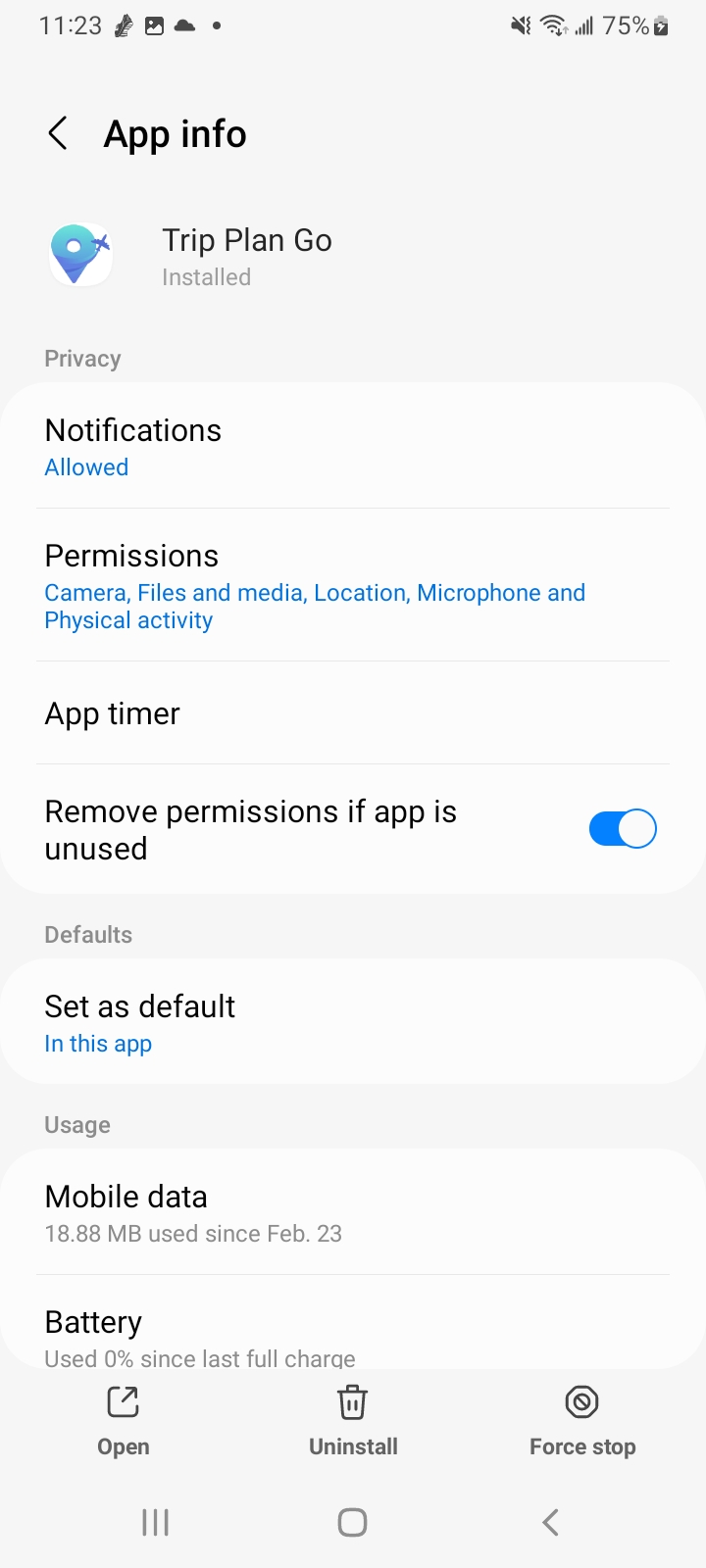
 For Trip Plan Go app, the following permissions are usually needed:
- FunWalking features: Location and Physical Activity
- Trip-related features: Files/Images, Camera, Location, and Microphone (if you want to send voice messages)
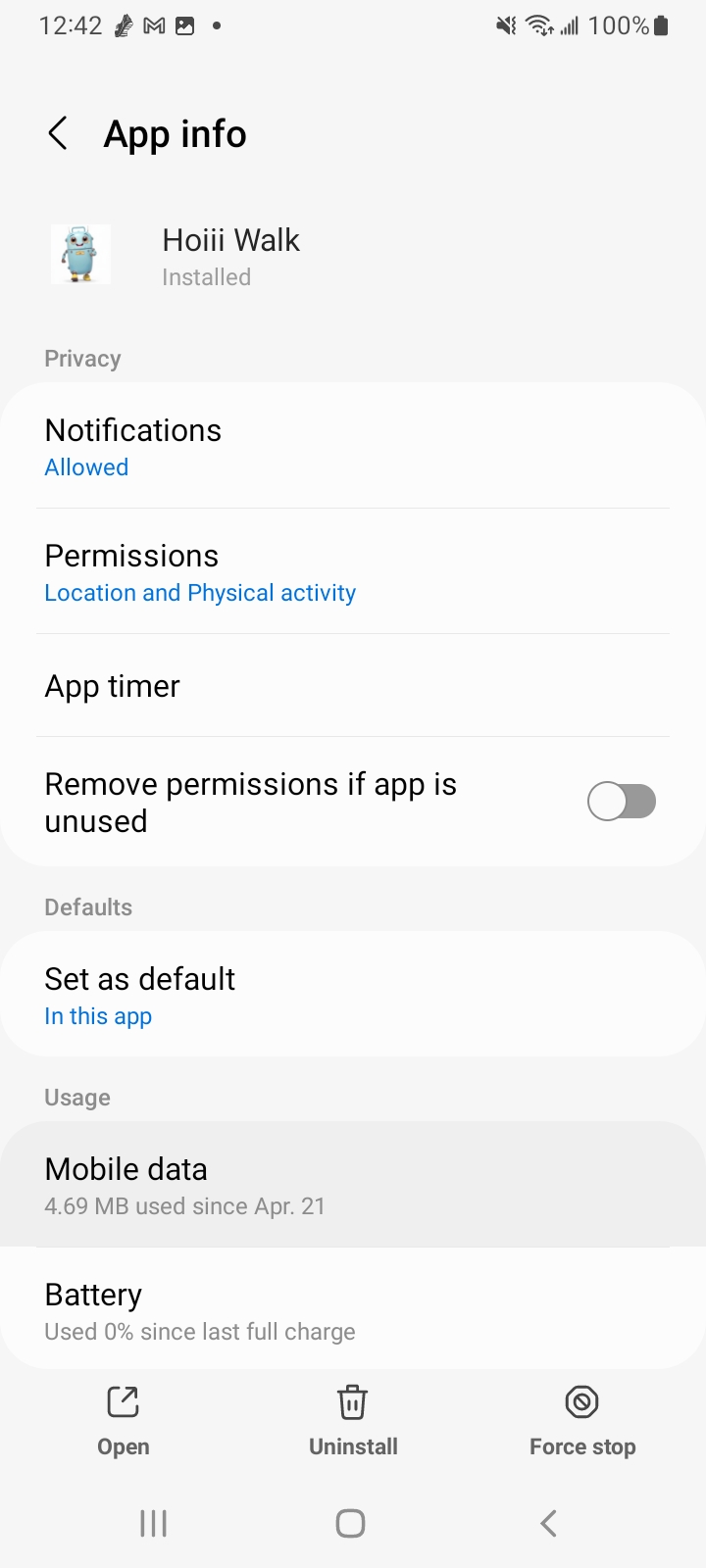
For Hoiii Walk, the following permissions are usually needed:
- Core walking features: Location and Physical Activity
In most cases, choosing “Allow while using the app” is sufficient.
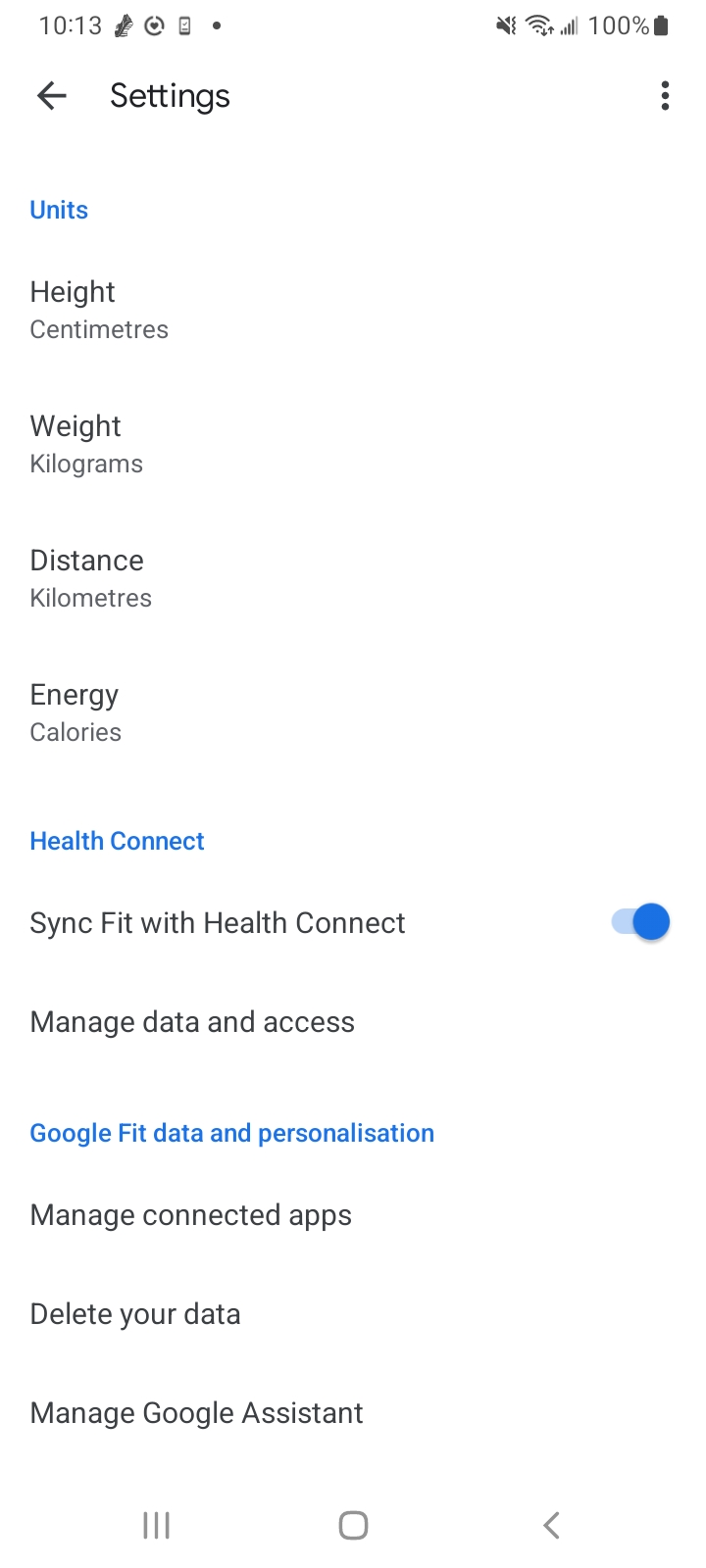
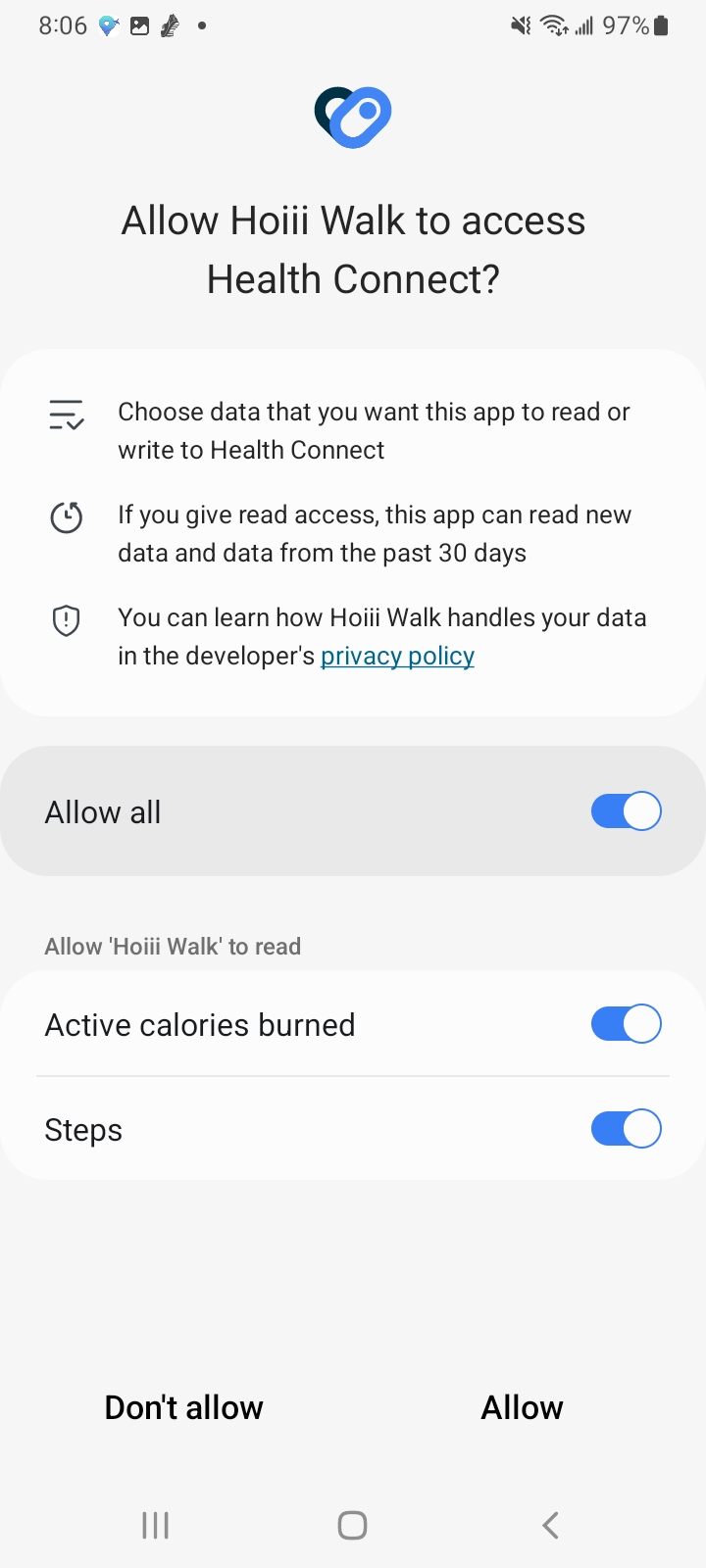
Steps to check - make sure you grant the app permission to Google Fit steps and/or another health app such as Fitbit or apps that can WRITE steps data into Health Connect so they will be synced to our Hoiii Walk and TripPlanGo apps.
- Open your Android device Settings
- Tap Apps
- Find and select Trip Plan Go or Hoiii Walk
- Tap Permissions
- Grant any required permissions that are not yet enabled (refer to screenshot below for more permission details)
- IMPORTANT: Check your Health Connect > Data and Access > Steps (This steps data will be synced to our apps) if there is NO DATA in your Health Connect, there are no steps to be synced to our apps. Also, on the Access tab, our apps should be in your "Can read steps" allowed list. Scroll down to see a video reference about this point.
Reference screenshots are shown below:
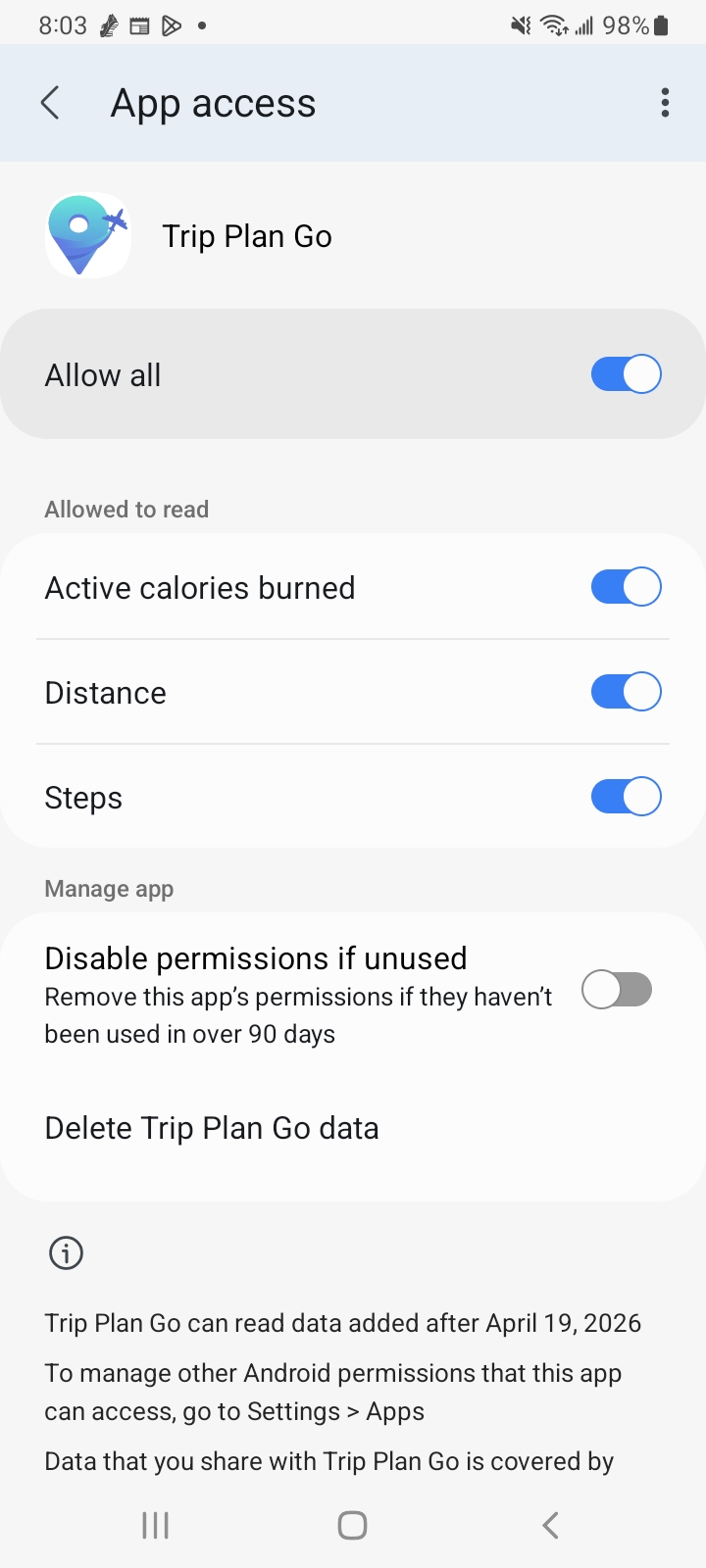
If you use Google Fit as the health tracker (allowing its Steps data writing into Health Connect), please also check this setting: open your Google Fit > Tap Profile (lower right corner person icon) > Tap Setting (top right corner gear icon) > on the Setting page, under Units, there is "Heath Connect" section, make sure to toggle ON for "Sync Fit with Health Connect" option.